
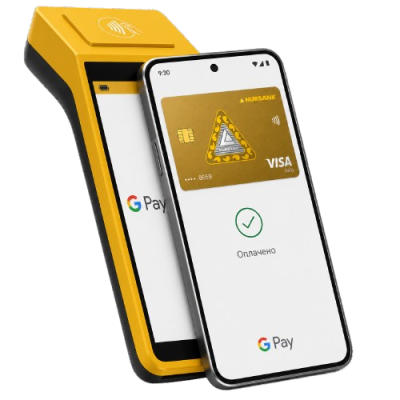
Connect your Nurbank card to Google Pay and make purchases with a single touch
Works anywhere contactless terminals are available, as well as in apps and on websites with the Google Pay button. You can store transit tickets, boarding passes, and loyalty cards in the wallet.
Payment takes just seconds: unlock your smartphone, hold it to the terminal, and the payment is complete.
Card details are not stored on the device and are not transmitted to the seller. A virtual token is generated for each transaction, and payment can only be confirmed with an unlocked smartphone.
Tip: NFC must be enabled on the device for payment, and Google Wallet must be set as the default payment application.
To pay with a smartphone via Google Pay, several conditions must be met: the device supports NFC and it is enabled; Google Wallet is selected as the default payment app; at least one card is added to the wallet; the phone has screen lock enabled (PIN, password, pattern, or biometrics); the device is Google-certified and meets security requirements; the screen is unlocked at the time of payment
Google Wallet is an application for storing bank cards, tickets, passes, etc. Google Pay is the payment technology within Google Wallet. When you pay with your smartphone in a store, it is technically Google Pay within Google Wallet.
Android Pay was rebranded to Google Pay, and its functionality was integrated with Google Wallet. All payment features have been retained.
Anywhere contactless payment terminals are available: in shops, cafes, and public transport. Also in applications and websites with a Google Pay button and Google services: YouTube, Google Play, Google Store.
In Android settings, open the 'Connected devices' section → 'Connection preferences' → 'NFC' and switch the toggle to 'On'.
In Android settings, go to "Connected devices" → "Connection preferences" → "NFC" → "Contactless payments" and select Google Wallet. Also, ensure that the latest version of the app is installed.
Hold your phone near the terminal a bit longer and try adjusting its position, as the NFC antenna is usually located in the upper or middle part of the device. If that doesn't help, look for the NFC symbol on the terminal or ask the cashier for guidance on where to place the device. Also, make sure that NFC is enabled, the screen is unlocked, and the card is successfully added to the wallet.
Before each payment, you need to unlock the screen. A PIN code, pattern, password, fingerprint, or face recognition (if the device supports biometrics) will work.
Android smartphones with version 9 and above, NFC support, Google certification, and screen lock enabled. Wear OS 2.18 or newer is required for smartwatches. Ensure you have the latest version of the Google Wallet app installed before use.